
A deep look into the settings and steps required to create a new Journey Template
Step 1: Navigate to the Journeys tab
Step 2: In the upper right, click Create Journey Template
You have two options when creating a Template: Starting from scratch or utilizing one of our research backed pre-populated Templates.
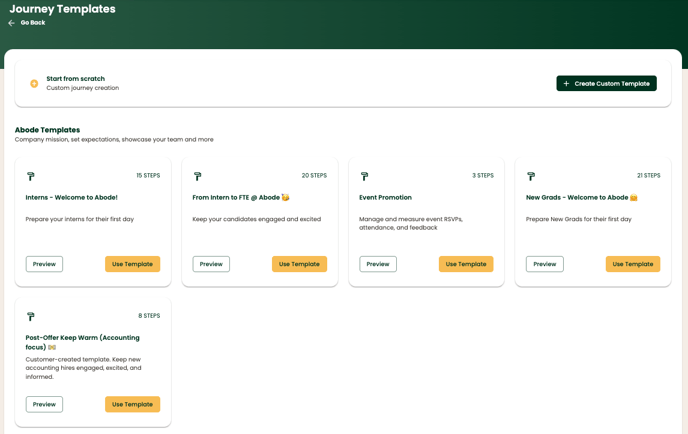
To create a Template from scratch:
Step 1: Click 'Create Custom Template' in the upper righthand corner
Step 2: Complete the following required fields:
- Title: an internal description for this template
- Description: a internal description for this template
- Select the Company Contact: This email will be used for email replies and will receive all Chat notifications for that template
- Enable Directory and Forum to give your candidates a sense of belonging and the ability to connect with one another throughout their Journey experience
- Planned enrollment date: use this as a guide to enrollment. The date selected does NOT automatically launch a journey.
- Select the Notification Time. All Step notifications, both email and SMS, are sent out at the same time within a Journey.
- Morning - 9:30 CST
- Afternoon - 3:30 CST
- Select the Delay Mode. The cadence in which steps in your Journey are delivered to candidates can be set in three ways:
- Custom Delay: Manually set the cadence that steps in your Journey are delivered to candidates.
- End Date: Select the end date and let the system automatically set the cadence that steps in your Journey are delivered to candidates.
- Fixed Date: Select the exact date each step will be delivered to candidates.
- Click Create Template
All fields except Delay Mode can be updated at any time after you create a template.
To use an Abode Template:
Step 1: Use the Preview button to browse all available Templates
Step 2: When you’ve made your Template selection:
- Click Use Template
- Complete the set up fields
- Click Create Template
Once you click Create Template, you will be immediately taken to the Template edit screen where you can begin editing Steps and Content.
💡Helpful Tip: Each Step will contain information and hints to help you through the editing process