
Once you have Steps created within your Journey Template, it’s time to add the Content. Individual pieces of content are the building blocks of each Step and begin as Common Components, but can also be used as Saved Components.
How to Create Common Components
Common components are the building blocks of each Step. They can take the form of a Survey, Button, Checklist, Content Upload, Text Box, or Candidate File Upload. Follow the below steps to get started!
Adding a Common Component to a Step
Step 1: Navigate to the Template Edit screen, click Content next to the Step you want to work on
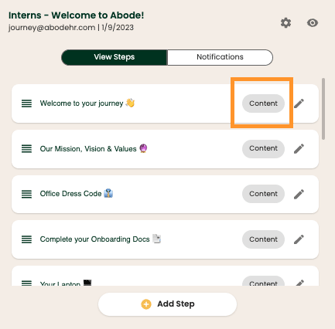
Step 2: Click Add Component
Step 3: Select which type of Component you want to create: Common or Saved
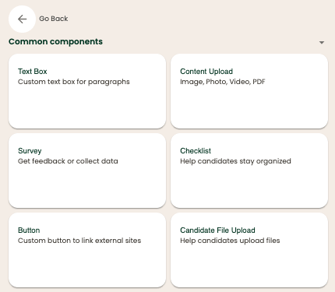
Surveys
To create a custom Survey with multiple choice or short answer options, follow the below steps. We recommend incorporating a minimum of 1 survey into your Journey.
Step 1: Title your Survey
Step 2: Complete a Description for your Survey introducing the topic and impact this will have for your candidates
Step 3: Click Add Question in the upper right hand corner.

Step 4: Select your Question style preference: Short Answer, Multiple Choice, Date, Time, or Linear Scale
Step 5: Input your question copy. Depending on the Question style you selected, complete the answer portion as well
Step 6: Repeat Steps 3 - 5 until you have added all your Survey questions.
To Organize Questions, use the drag and drop section at the bottom of the Survey builder to rearrange any of your questions.
Step 7: Once all your questions and answers are complete, click Save Survey in the bottom right hand corner

To Edit any part of your Survey after Saving it, click the pencil icon to the right of your Survey title.
Use the Trash can icon in the upper right hand corner to delete the entire Survey
Make sure to Click Save Survey to capture any edits or changes you have made
Buttons
Create Buttons to link recipients to external sites or URLs. Use emojis, gifs, and other Content when creating buttons for a comprehensive (and fun) experience!

Step 1: Complete a Description for your Button introducing the content your sharing and any relevant information or instructions they will need
Step 2: Title your Button. The Title will show up on the Button itself where Recipients will ‘click’.
Step 3: Input your link's URL.
The Protocol is automatically added so make sure to remove it when adding your URL
Step 4: Once all fields are complete, click Submit Button
To Edit any part of your Button, click the pencil icon to the right of your Button title.
💡Helpful Tip: Make sure to test you Buttons after creating them to make sure it directs candidates to the correct location.
Checklists
Create a custom Checklist to coordinate action items, reminders, or steps that may have been distributed across a variety of journey steps.
Step 1: Title your Checklist
Step 2: Complete a Description for your Checklist
Step 3: Click Continue

Step 4: Click Add Item
Step 5: Input your checklist item copy then click Add.
Step 6: Repeat Step 5 until all your items are created.
- Use the drag and drop feature to rearrange your checklist items
- Use the Pencil icon to make any edits
- Click the X next to any line items you want to delete
Step 7: Once all your items are added, click Save Checklist
To Edit any part of your Checklist, click the pencil icon to the right of your Checklist title.
Content Upload
Utilize images, photos, videos, and pdfs across your Journeys. Additionally, include gifs, memes, and other social-oriented features to keep your journey fresh!
Step 1: To begin, click Content Upload. This will launch a popup that will allow you to select what source you upload your files from:
There are several upload options:
- Direct from your computer
- Social media sites
- Google Drive
- Record custom content direct

Step 2: Once your file(s) are selected, click Upload
Step 3: Update the file Title and Description using the Pencil icon to the right of the Content
To Edit any part of your Content, click the pencil icon to the right of your Content title.
- Use the Trash can icon to delete the entire piece of Content
- Click Submit Content to capture any edits or changes you have made
Text Box
Create custom Text Boxes to display text copy within a Journey Step. Text Boxes are great for announcements, introducing information or anything that does not require a specific call to action
Step 1: Title your Text Box
Step 2: Enter your copy in the Text Box section
💡Helpful Tip: Use emojis in your Text to draw attention to important sections
Step 3: Once your text is complete, click Submit Text Box

To Edit any part of your Text Box, click the pencil icon to the right of your Text Box title.
- Use the Trash can icon to delete the entire Text Box
- Click Submit Text Box to capture any edits or changes you have made
Candidate File Upload
Use a File Upload component to allow candidates to upload files such as resumes directly to their Journey. Eliminate email inbox traffic and store files natively within the platform to keep Abode a "one-stop-shop" for candidates and recruiters.
Step 1: Title your File Upload
Step 2: Enter a Description for the upload you need and any relevant instructions
Supported formats include JPEG, PNG GIF, MP4, PDF, PSD, AI, Word, and PPT
Step 3: Click Submit File Upload

How to Create Saved Components
Saved components originate as Common components and can be saved for use across other Steps and Journey Templates.
Saving Components
Step 1: A Saved Component starts with an existing Component. Click the pencil icon next to the Component you want to save.
Step 2: In the upper right hand corner, click the tab icon.

Step 3: Click Submit on your Content to ‘Save’ it.
You are now ready to use it across other Steps and Templates!
Using Saved Components
Adding a Saved Component follows the same initial process as creating a Common Component…
Step 1: Starting in the Template Edit screen, click Content next to the Step you want to work on
Step 2: Click Add Component
Step 3: Click the drop down arrow next to Saved Components underneath the Common Component menu options. Any previously saved items will be available here.

Step 4: Click on the Component you want to add. Then, click Confirm on the pop out window

Your Saved Component is now a part of your Step and ready to use or edit as needed!